The Portal
The home for everything your organization makes: browse, search, organize and manage all content, maps, datasets, apps and files, in one place.
Portal home#
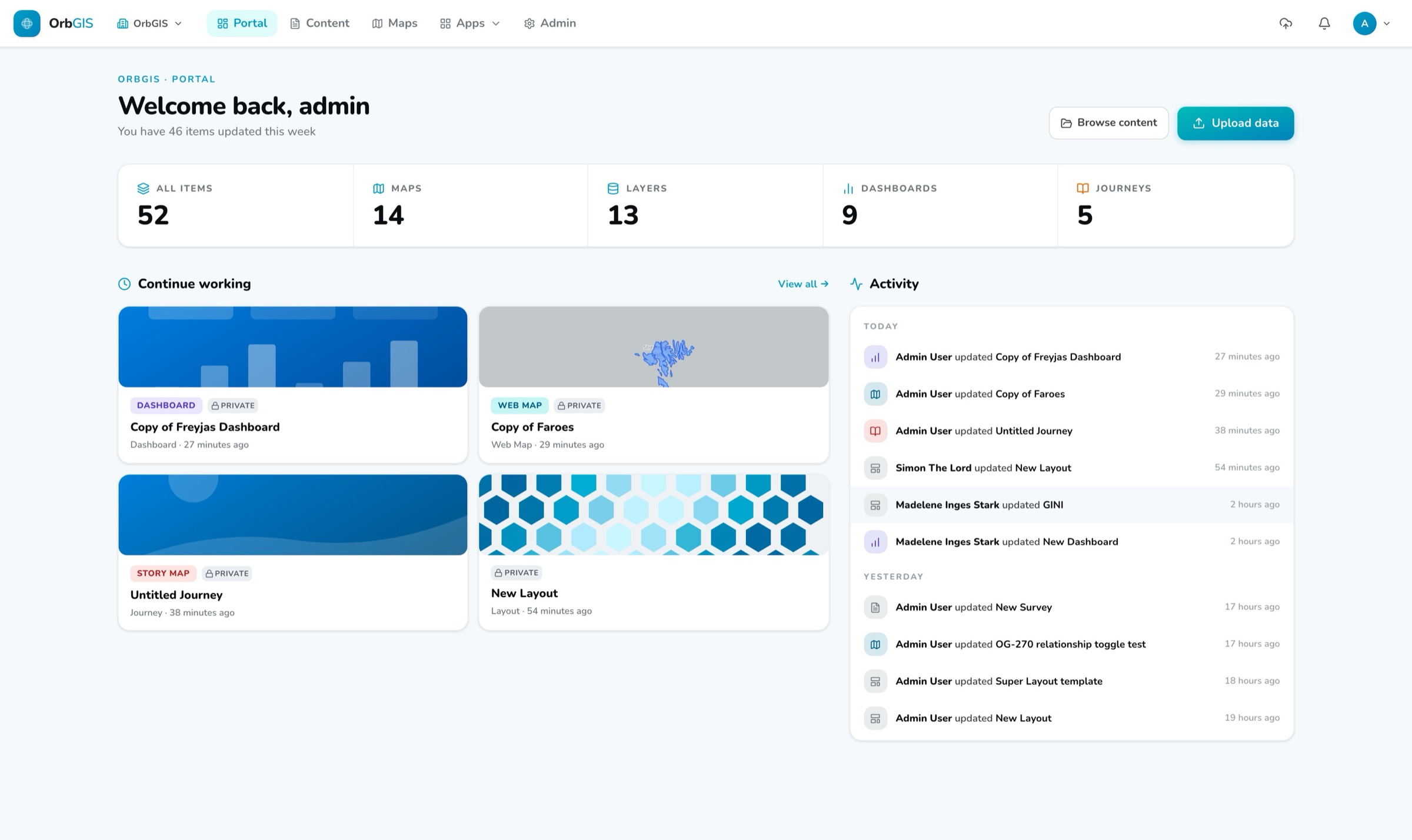
The home page greets you with your organization’s numbers (all items, maps, datasets, dashboards, journeys), a Continue working grid of your most recently updated items, and an activity feed of what’s changed. Browse content and Upload data take you straight to work.
The content browser#
Content lists everything you can see, as cards or a list. Search runs server-side over names, tags and descriptions; filters narrow by type and tags; sort by modified, created or title. Multi-select mode enables bulk move, download and delete. Every item type has a badge and color, Web Map, Dataset, Table, Dashboard, Journey, Survey, Layout, Image, PDF, Document and more.
Folders are yours alone#
Folders organize your view of the organization’s content: they’re private to you, and nobody else sees how you’ve arranged them. Drag items into folders, create and delete folders freely, it never affects what teammates see. The Recycle bin sits pinned at the bottom of the folder sidebar; see The recycle bin.
Item pages#
Every item has a detail page: rename inline, write a summary and description, manage tags, see type, owner, dates and size, and control Ownership, Private or Organization (see Sharing & publishing). Maps, dashboards and journeys keep version history: browse versions by author and restore any of them (the current state is saved as a version first, so restores are safe). Type-specific actions sit in the header: Open, Duplicate, Download for file-backed items, Delete.
Item actions#
- Open, jumps into the right editor or viewer for the type.
- Rename, Move to folder, Duplicate (apps and maps, a copy is never born published), Download (uploaded files).
- Move to Recycle Bin, soft delete with 30 days to change your mind.
Search everywhere#
Besides the content browser’s search, the header search (Ctrl+K / ⌘K) is a command palette over your whole portal. The dedicated search page adds facets, type, ownership (Private/Organization) and published state.
Navigation#
The header holds Portal, Content and Maps, an Apps menu (Dashboards, Journeys, Surveys, Layouts), a Tools menu (Data Editor, Theme Builder, QGIS Plugin) and, for admins, Admin. The user menu holds your settings and sign-out.